
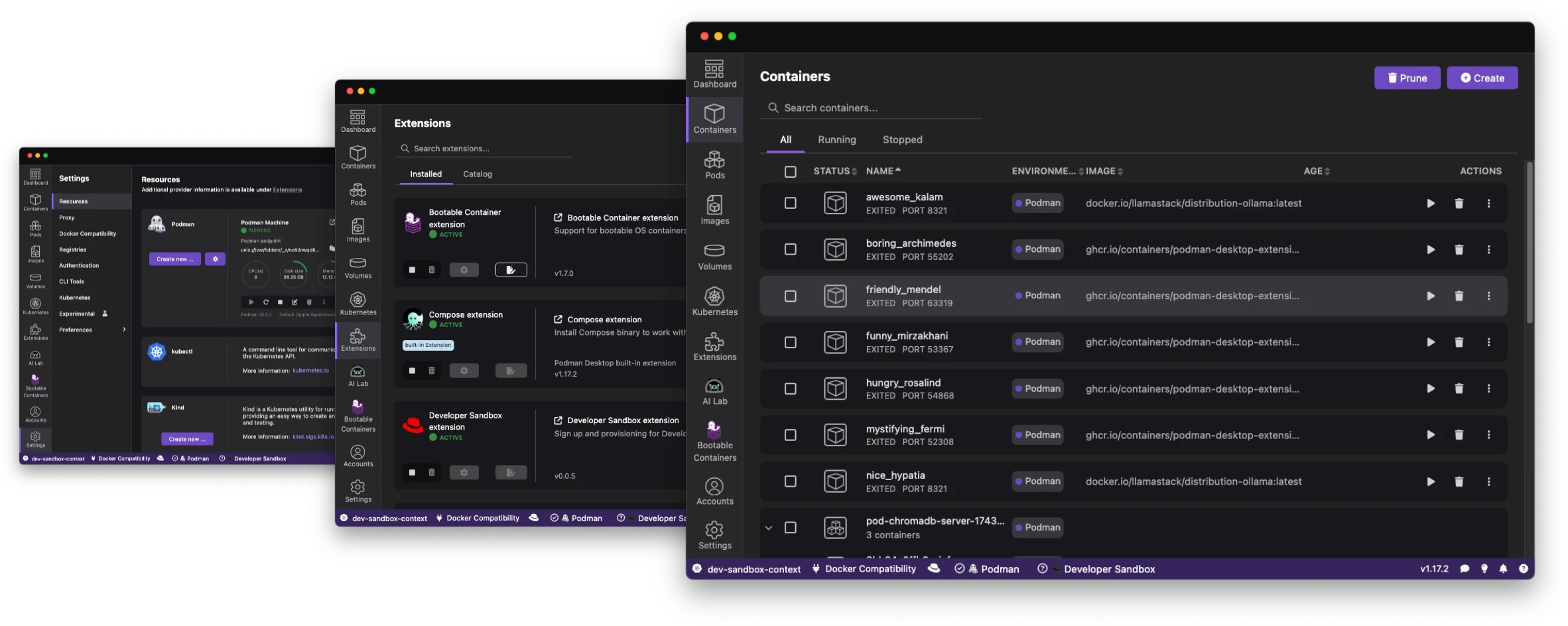
Podman Desktop + Windows 11 + WSL2 安装使用指南
1. 前提检查
管理员 PowerShell 执行:
wsl --status
如果没装 WSL:
wsl --install
更新 WSL:
wsl --update
设置默认 WSL2:
wsl --set-default-version 2
确认虚拟化已开启:
systeminfo | findstr /i "Virtualization"
2. 安装 Podman Desktop
方式一:winget 安装
winget install RedHat.Podman-Desktop
建议同时安装 Podman CLI:
winget install RedHat.Podman
方式二:官网下载
https://podman-desktop.io/
安装:
Podman Desktop
Podman CLI
3. 初始化 Podman Machine
Podman 在 Windows 上实际通过 WSL2 虚拟机运行。
普通 PowerShell 执行:
podman machine init
podman machine start
或一步:
podman machine init --now
查看状态:
podman machine list
验证:
podman info
4. 推荐初始化参数
如果是开发机,建议:
podman machine init --cpus 4 --memory 4096 --disk-size 50 --now
含义:
CPU:4 核
内存:4GB
磁盘:50GB
5. Podman Desktop 中检查
打开 Podman Desktop:
Settings
  → Resources
  → Podman
确认:
Podman Engine:Running
Podman Machine:Running
6. 基本命令
拉镜像
podman pull nginx
运行容器
podman run -d --name nginx-test -p 8080:80 nginx
访问:
http://localhost:8080
查看容器
podman ps
查看所有容器
podman ps -a
停止容器
podman stop nginx-test
删除容器
podman rm nginx-test
删除镜像
podman rmi nginx
7. 构建镜像
目录中有 Dockerfile:
podman build -t myapp:latest .
运行:
podman run -d --name myapp -p 8080:8080 myapp:latest
8. 挂载 Windows 目录
示例:
podman run -it --rm -v C:/Users/ots00018/test:/data alpine sh
容器内查看:
ls /data
注意:
Windows 路径建议用 C:/xxx/xxx
不要用 C:\xxx\xxx
9. 进入容器
podman exec -it nginx-test sh
如果容器有 bash:
podman exec -it nginx-test bash
10. 查看日志
podman logs nginx-test
持续查看:
podman logs -f nginx-test
11. 使用 compose
Podman Desktop 支持 Compose,但建议安装 Docker Compose 或 podman-compose。
安装 Docker Compose
winget install Docker.DockerCompose
使用 compose
docker compose up -d
或:
podman compose up -d
如果 podman compose 不可用,先在 Podman Desktop 里启用 Compose 支持。
12. Docker 兼容模式
很多工具默认找 Docker。
可以在 Podman Desktop 中启用:
Settings
  → Docker Compatibility
  → Enable Docker API compatibility
验证:
docker ps
如果没有 Docker CLI,可以只用:
podman ps
13. 常用管理命令
启动 Podman VM
podman machine start
停止 Podman VM
podman machine stop
重启 Podman VM
podman machine stop
podman machine start
删除 Podman VM
podman machine rm
重新初始化
podman machine init --now
14. 镜像加速/私有仓库
编辑 Podman machine 内配置较麻烦,优先在企业内使用:
私有 Harbor
JFrog
Nexus Registry
登录私有仓库:
podman login registry.example.com
推送:
podman tag myapp:latest registry.example.com/project/myapp:latest
podman push registry.example.com/project/myapp:latest
15. rootless / rootful
默认是:
rootless
更安全。
如果某些场景必须 rootful:
podman machine set --rootful
podman machine stop
podman machine start
一般不建议 rootful,除非明确需要。
16. 常见问题
1. podman: command not found
说明没装 Podman CLI。
执行:
winget install RedHat.Podman
2. Cannot connect to Podman
启动 machine:
podman machine start
3. 端口无法访问
检查容器端口:
podman ps
确认有:
0.0.0.0:8080->80/tcp
4. 挂载目录失败
路径写法用:
C:/Users/xxx/path
不要用:
C:\Users\xxx\path
5. WSL 异常
执行:
wsl --shutdown
podman machine start
17. 推荐日常使用方式
PowerShell / Windows Terminal 执行 podman 命令
Podman Desktop 查看容器、镜像、卷、日志
WSL2 作为底层运行环境,不直接手工改 Podman machine
18. 最短流程
wsl --install
wsl --update
winget install RedHat.Podman-Desktop
winget install RedHat.Podman
podman machine init --cpus 4 --memory 4096 --disk-size 50 --now
podman info
podman run -d --name nginx-test -p 8080:80 nginx
访问:
http://localhost:8080
成功即可。
